Facial Expression Instructions in Image Generation AI: How a Single Word Changes a Character's Impression
When depicting characters using image generation AI, one of the elements that most influences the impression is their "expression." In this session, I experimented on how the AI differentiates drawings when only the words regarding expressions in the prompt are swapped within the same settings.
- Incorporating specific words for expressions (e.g., smile, pout) specifically changes facial parts and the area around the eyes
- In generation under identical conditions, high-speed processing is possible such that any expression can be output in an instant
- There is a tip for approaching the ideal expression by adding instructions step-by-step
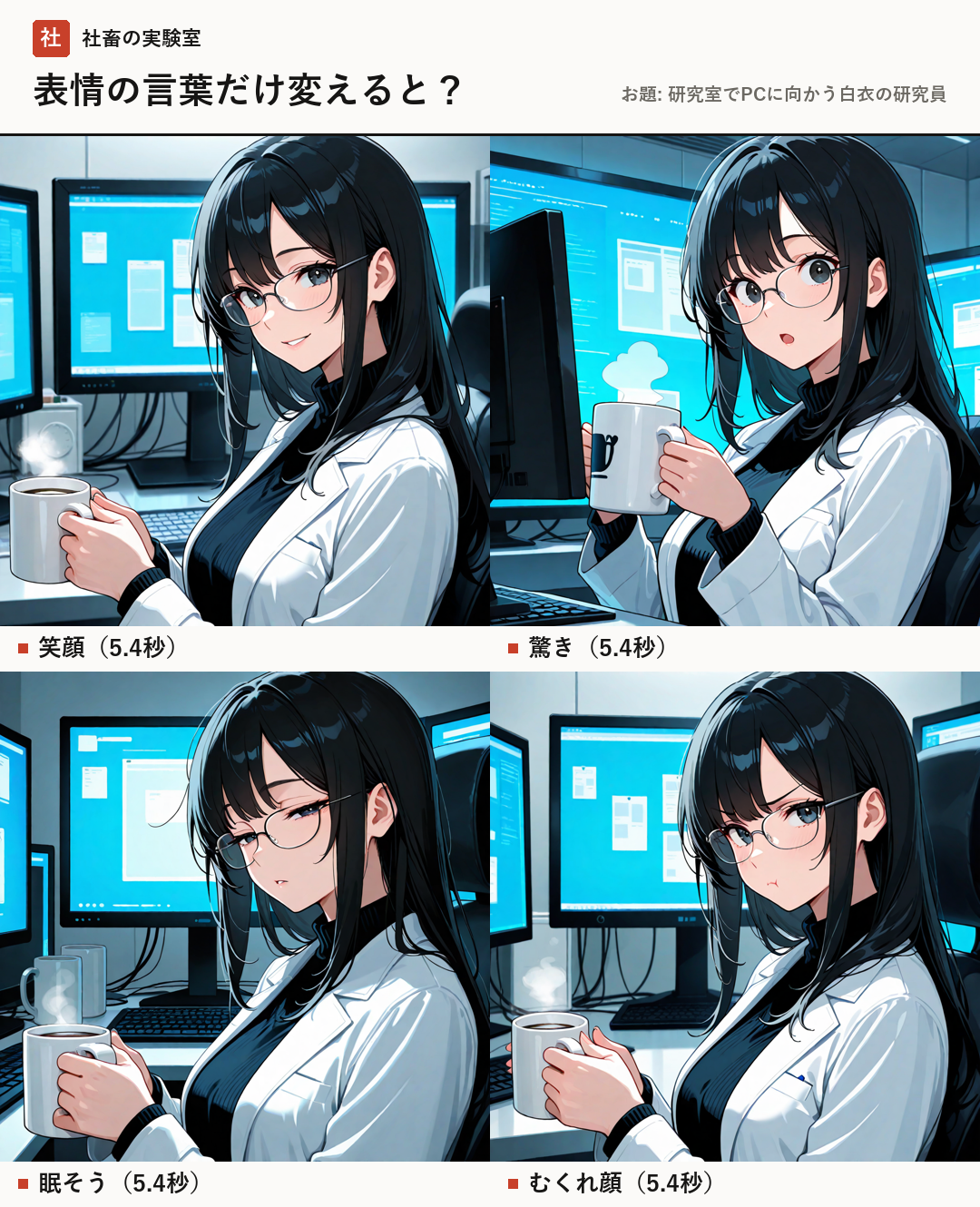
Experiment Overview and Environment
In this experiment, I conducted a comparison where only the character's expression was changed for the theme "a researcher in a white coat facing a PC in a laboratory." The model used was novaAnimeXL (an anime-style model of the SDXL family), and I adopted Stable Diffusion WebUI Forge as the tool.
To maintain accuracy in comparison, the image size and generation conditions were all unified. Specifically, I set the number of steps (the number of processes to generate the image), CFG scale (a value that adjusts faithfulness to the prompt), sampler (the algorithm for calculating images), and seed value (a value that fixes the random numbers of the generation result) to the same settings.
The PC environment used for generation is an RTX 4080 (VRAM 16GB). Under this environment, the time taken to generate each expression was 5.4 seconds. This speed is close to the feeling of being "output in an instant," showing that very smooth generation is occurring.
- Model: novaAnimeXL
- Tool: Stable Diffusion WebUI Forge
- Generation Conditions: Steps 25, CFG 5, Sampler Euler a, Seed 312016
- Generation Time: Approximately 5.4 seconds for each expression (instant)
Changes in Expressions and AI Differentiation
For the four expressions verified, I have organized the words added to the prompt and the changes in the generation results.
First, with "smile," adding "smile" to the prompt changed the character's expression to be brighter. Next, for "surprised," by combining two words "surprised, open mouth," the way the mouth opens and the movement of the eyes are emphasized.
For a "sleepy" expression, I specified "sleepy, half-closed eyes" to express the overlapping of eyelids and changes in gaze. Then, for a "pouty face," by using the word "pout," a unique nuance was added as if the corners of the mouth were twitching.
From these results, it can be confirmed that the AI specifically differentiates fine parts such as the eyes, eyebrow shapes, and mouth openings according to the specific instructions provided.
- Smile: smile
- Surprised: surprised, open mouth
- Sleepy: sleepy, half-closed eyes
- Pouty face: pout
Tips for Drawing Out the Ideal Expression
To derive the desired expression with image generation AI, a method of adding words step-by-step is more effective than cramming many instructions at once.
Start first with a standard description (e.g., a researcher in a laboratory), and then try adding expression-related words like "smile" or "pout" one word at a time. By adjusting while observing how the character's impression changes as each word is added, you can approach an expression closer to your intent.
- Start from the basic description
- Observe changes by adding expression-related words one by one
- Perform fine adjustments while watching the AI's differentiation response
Summary
It is a very interesting characteristic of image generation AI that the slight choice of words in a prompt breathes life into a character and gives a completely different impression. As verified this time, by choosing appropriate words, you can enjoy rich changes in expression without sacrificing speed.
Start with simple instructions first and try to find your own ideal expression.
- The character's impression changes drastically with just one word
- Appropriate combinations of words are the key to differentiation
- Step-by-step addition of prompts is a recommended workflow
- People who have just started with image generation AI
- People who want to know tips for writing prompts
- People who want to control character expressions more finely
- Model
- The basic program for generating images based on datasets that the AI has learned.
- Prompt
- An instruction sentence used to tell the AI "what you want it to draw."
- Steps
- The number of times the AI repeats calculations when generating an image.
- CFG Scale
- A value that adjusts how faithfully the AI follows the content of the prompt.
- Sampler
- The method (algorithm) used when reconstructing images from noise.
- Seed Value
- The seed for the random numbers that form the basis of generation. A value that allows comparison by fixing conditions by using the same seed value.
- VRAM
- Dedicated memory mounted on a video card (GPU).
FAQ
Why do you fix the seed value?
By fixing the seed value, we can accurately compare changes caused only by the expression prompt without changing other elements such as the character's clothing or background.
What happens if I put in many expression words at once?
While not explicitly stated in official information, it is generally recommended to add one word at a time because instructions may conflict and result in unintended depictions.
In this experiment, it was confirmed that changing just one prompt related to expression dramatically changes the character's impression. Using the novaAnimeXL model under an RTX 4080 environment, I performed high-speed generation of approximately 5.4 seconds (instant) and compared smile, surprised, sleepy, and pouty faces. The tip for creating the ideal expression is to start from the basics and add words one by one.