
Don't Let Increasing Images Slow You Down! Optimization Techniques to Drastically Speed Up Gallery Displays
“The more images there are, the slower the operations become...” Have you ever experienced a gallery display stuttering or scrolling becoming slow when you have many AI-generated wallpapers saved? In fact, our verification revealed that the cause of slow performance isn't just the "file size of the images." This time, we will explain in detail the technical points of how we solved this problem.
- 【Cause】Browsers are sensitive to the memory consumption after expansion rather than the image file size itself
- 【Solution 1】Reducing transfer volume by automatically generating thumbnail images (suppressed to about 1/70th)
- 【Solution 2】Changing from "loading all items" to "loading only what is necessary"
- 【Solution 3】Fast filtering using an index file
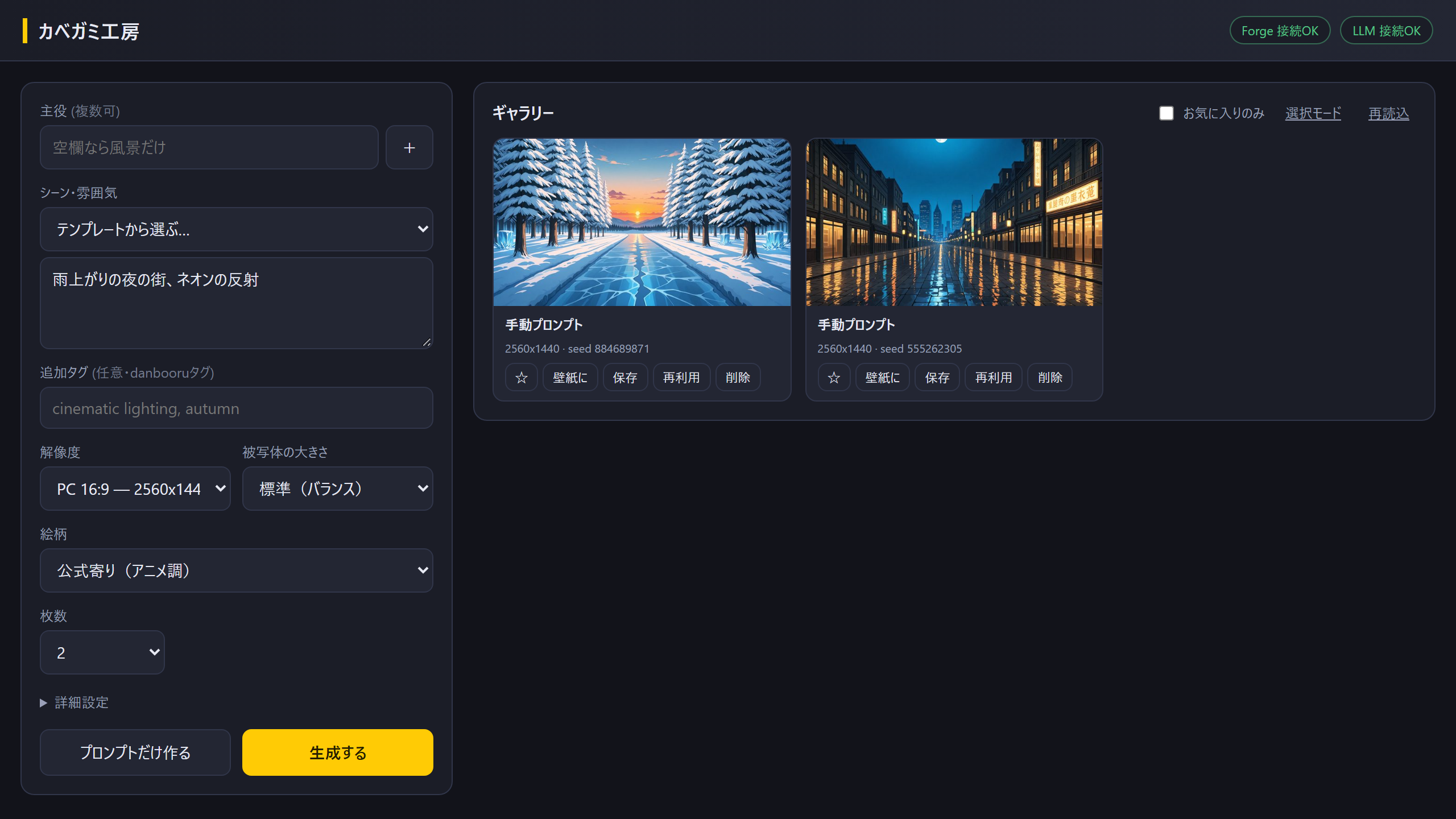
Why are high-quality images "heavy"?
First, in the initial verification, we displayed 2560x1440 pixel PNG images (approx. 3.2MB per image) directly in a card format. At first glance, 3.2MB might seem like it wouldn't be a problem. However, there was a pitfall regarding how browsers work.
When displaying, the browser expands the image file into memory. At this point, the system is designed to consume and hold about 14MB of memory per single image. Therefore, as the number of images increased, it pressured the browser's memory, making the operations heavier with every scroll.
- Displaying PNG (3.2MB per image): Expanded to approx. 14MB within the browser
- Memory consumption increases as the number of images grows, affecting performance
Introducing "Thumbnails" to suppress transfer volume to about 1/70th
To solve this problem, the first step we took was introducing "thumbnails" (small images for list display). We changed the system to automatically generate 640px JPEG format thumbnails at the time of saving.
By making the list screen display these small thumbnails, the data transfer volume was reduced to about 1/70th of the original. This allowed for smooth display while suppressing the load on the network.
- Automatically generate 640px JPEG thumbnails upon saving
- Prioritize using thumbnails for list display
- Significantly reduce transfer volume to about 1/70th
Processing Efficiency: From viewing everything to viewing "only what is necessary"
Next, we worked on improving the data processing method. In the initial mechanism, when displaying the list, the system would read all saved information at once before extracting the necessary parts. Because of this, the processing time increased in proportion to the number of images. For example, with 1505 items, it took 3188ms (approx. 3.2 seconds) to load.
We changed this to a method of "sorting first, then loading only what is displayed on the screen." As a result, the loading time was shortened to 120ms, and it became as fast as 49ms for the second load onwards.
Furthermore, regarding the "favorites" filtering, by implementing an index file (an index similar to a table of contents for quickly searching data), we accelerated a process that took 1378ms down to 64ms.
- Improved from loading all items (3188ms) to loading only displayed items (120ms)
- Introduced an index file to shorten filtering from 1378ms to 64ms
- Changed to a mechanism that only updates cards where changes occurred
Summary: Points for creating a smooth experience
What we learned through this optimization is that to provide a comfortable user experience, it is not just about "making data smaller," but also about "how to eliminate wasted processes."
1. Substitute large images with thumbnails
2. Do not process data that is not visible on the screen all at once
3. Use indexes for searching and filtering
By keeping these points in mind, you can build a stress-free gallery even with a large number of images.
- Utilization of thumbnails
- Loading only necessary data
- Speeding up searches with indexes
- People who want to manage a large number of AI-generated images on their own PC
- People who are building their own web apps or tools and are struggling with display speed
- People who want to know efficient data processing mechanisms
- Memory
- The workspace where data is temporarily placed when a computer is operating.
- Transfer volume
- The amount of data sent and received through a network.
- Index file
- A list that allows you to quickly find where specific data is located, similar to the index of a book.
FAQ
Why use JPEG instead of PNG for thumbnails?
Based on official information and general specifications, JPEG can keep the file size smaller than PNG, making it suitable for situations where "speed" is required, such as in list displays.
How fast are numbers like 120ms or 49ms?
It is within the range that humans perceive as "instant." While a 3188ms (approx. 3 seconds) wait time is at a level that feels like a "short wait," anything under 120ms feels like the system is reacting immediately to the operation.
In this final installment of Kabegami Studio, we introduced three techniques to drastically improve the performance of an image gallery: 1. Reducing transfer volume with thumbnails, 2. Improving processing efficiency by loading only displayed items, and 3. Fast filtering using index files. Through these optimizations, we realized a gallery that runs smoothly even with a large number of images. Please use this as a reference for your first step toward comfortable AI image management.